Paperless office; document/image processing 📷🮕🖥🖻📠🗄🖼📥🧾

75 readers
1 users here now

Everything related to maintaining a paperless office running on free software.

Discussions include image processing tools like GIMP, ImageMagick, unpaper, pdf2djvu, etc.

founded 2 years ago
MODERATORS
1


Before posting an image to the fedi, I want to be mindful about the network burden it will cause. I’m only uploading the image once but potentially thousands of people could end up downloading it.

If it’s a color image, then JPG is typically best. This #ImageMagick command reduces the filesize quite a bit, trading off quality:

  $ convert "$original_image_file" \
    +dither \
    -posterize 8 \
    -sampling-factor 4:2:0 \
    -strip \
    -quality 75 \
    -interlace Plane \
    -gaussian-blur 0.05 \
    -colorspace RGB \
    -strip \
    smaller_file.jpg

If it’s a pic of a person, this processing will likely be a disaster. But for most things where color doesn’t matter too much, it can be quite useful. Play with different -posterize values.

If you can do with fewer pixels, adding a -resize helps.

  $ convert "$original_image_file" -resize 215x smaller_file.jpg

If you can get away with black and white, jpeg is terrible. Use PNG instead. E.g.

  $ convert "$original_image_file" -threshold 30% -type bilevel smaller_file.png

For privacy, strip the metadata

The ImageMagick -strip option supposedly strips out metadata. But it’s apparently not thorough because the following command yields a slightly smaller file size:

  $ exiftool -all= image.jpg

What else?

Did I miss anything? Any opportunities to shrink images further? In principle the DjVu format would be more compact but it’s not mainstream and apparently not accepted by Lemmy.

2


I scanned an envelope which had a dot matrix 4-state barcode by the postal service. It did not appear on the /bilevel/ scan. So I tried very low thresholds (the point at which light gray is treated as either black or white). The threshold needed to retain the fluorescent(†) barcode is so low that black text on the same scan becomes too dirty for OCR to work.

The US postal service scans (all?) envelopes and thus has records of who is sending mail to who. (Do other countries do this?) Anyway, I wonder how we might counter the privacy intrusion. What if the return address on an envelope is printed in fluorescent orange.. would the return address be suppressed from envelope scans? IIUC, they would have to scan in grayscale or color to capture it, which would take a lot more storage space. So they are probably doing bitonal scans. Yellow would work too but it’s much harder for an eye to see. This fluorescent orange is readable enough to a human eye but apparently tricky for a machine.

Of course the return address is optional, so the best privacy is to simply not supply a return address. But if return service is wanted, supplying a return address is inherently needed.

Another thought: suppose an address is dark blue text on a light blue background, or white text on a medium blue background. The scanning software would have to be quite advanced to choose a threshold that treats the text differently than the background, no? If the return address is fluorescent orange and the destination address has a background color, envelopes could perhaps be printed in a way that stifles the mass surveillance.

(†) I cannot concretely assert that it is fluorescent; just describing what it looks like.

3


I was able to embed an EPS file in the source so that the compiler generates the image that the document re-imports. EPS files have different formats and some of them fail because they are binary, so it’s a dicey process.

what worked

I started with a large JPG which I was importing this way:

\includegraphics[width=18mm]{big.jpg}

Looked nice but quite wasteful as the whole JPG ends up inside the PDF only to be scaled down to 18mm wide. So I needed to resample it. But I also need to distribute the tex doc and really can’t be dealing with distributing multiple files. EPS files can be simple ascii text and they can be embedded in the code. So I ran ImageMagick to shrink the image and produce an EPS file:

$ convert big.jpg -geometry 100x small.eps

The the scaling option (width=18mm) can now be omitted: \includegraphics{small.eps}. It was the right size but blurry. WTF? I don’t know the problem exactly but I recall that ImageMagick has some shitty defaults that ignore attributes of the original image, thus forcing users to figure out what parameter to provide in order to maintain original attributes.

I could not be bothered to investigate. So I made the image 50% bigger than needed and made latex rescale it (sloppy but works):

$ convert big.jpg -geometry 150x medium.eps

In LaTeX: \includegraphics[width=18mm]{medium.eps}

Job done. But sloppy because I should not have to make the image bigger than displayed and then downscale it in LaTeX to avoid blurr.

better, but fails

So I used #GIMP to shrink the image. GIMP is a different kind of shit-show because it crashes Wayland, but I was finally able to scale the image faster than GIMP could crash and GIMP did a good job. That is, the EPS file was the right size and without getting blurry. Thus the resampling was proper.

But the EPS file produced by GIMP is not ascii text. It has some characters that fuck up the ability to embed the image in the source code. Fuck me. There are different EPS flavors and even a badly documented eps2eps tool.

Perhaps I have to use GIMP to scale to a PPM and then ImageMagick to convert the PPM to EPS without scaling. Assuming that works, an annoyance remains: an EPS ascii text file from ImageMagick has many lines which requires a lot of scrolling to reach the LaTeX code after it’s embedded in the code. Are there any other non-binary image formats apart from (e)ps?

PDF is a one. A PDF can also be binary or ascii. If the effort is made to ensure an ascii PDF, I think the downside is the final document is no longer versatile (can only be PDF not PostScript).

SVG is another ascii image format but I’m not confident LaTeX handles it well.

I am tempted to follow this approach to make a definitively ascii EPS file. But it would be useful if there were a way to make an EPS file that has no more than 20 or so linefeeds.

There is an inline-images package.. I might fiddle with that if the EPS gives too much issue.

Update

I looked more into ImageMagick. The complexity is staggering because there are six approaches to minifiscation:

-sample -resample -scale -resize -adaptive-resize -thumbnail

Resizing turns out to serve my purpose well. But then there are 30 different filters listed by convert -list filter. So I tried them all:

convert -list filter| while read fltr; do convert source.jpg -filter "$fltr" -resize 215x "$fltr"215x.eps; done
montage *215x.eps -tile 8x miff:- | display -

They all looked the same AFAICT and all were decent. So I just used the default filter in the end. I’m glad I could ditch GIMP given how badly it behaves on Wayland. The encoding from ImageMagick is very safe for embedding in LaTeX docs, as it seems to use only HEX symbols (0-9,a-f). Here is a sample:

4D4D48454342413E3D3F3F40403F3B3A3C3D40413E393835322D26211B1C1B191C1B1C1A
1A19171314172828292B3844474C4B5256554B44474B555B5C5A585857585C63676F777F
868C8D9096999CA0A2A3A6A7A7A9AAACADAFB1B1B1B2B4B6BABCBDBEBEBFBEBEC285302F
442F11120D0E1B32230F14201B0D101B23231418293E42514A6A4653605B393F4B523C4C

OTOH, it’s so limited that an image of approximately ~18x25 mm ends up taking almost 1600 lines of text in the document.

GIMP’s output is apparently also ascii. I don’t know how to test that other than to grep it for something arbitrary and see if grep prints that the file is binary. The encguess command prints US-ASCII. GIMP uses a broader range of ASCII which is normally preferred but something causes pdflatex to choke on it.
4


The linked thread shows a couple bash scripts for using Gimp to export to another file format. Both scripts are broken for me. Perhaps they worked 14 years ago but not today.

Anyone got something that works?

5


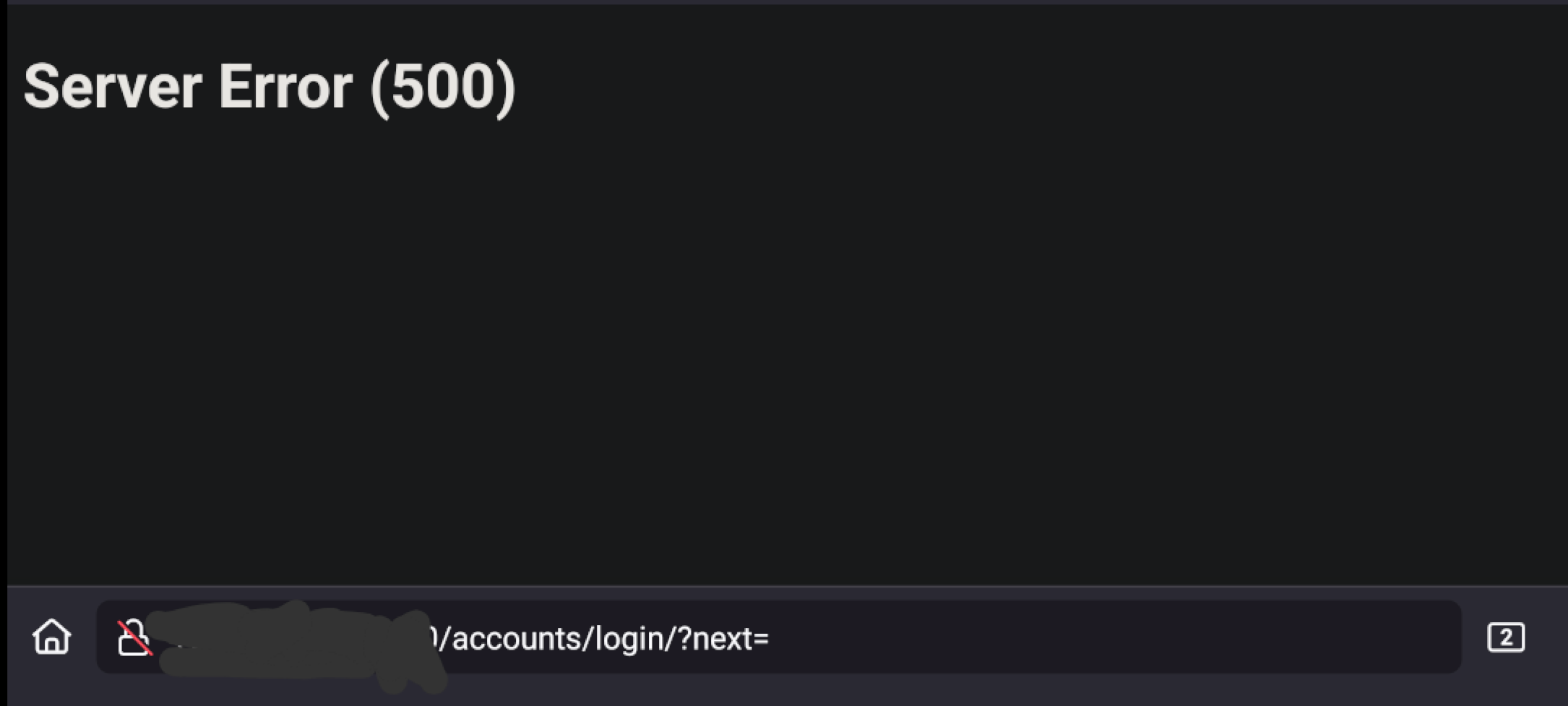
Hi. Since paperless@feddit.de seems dead... Maybe someone here can help me. I installed Paperless-ngx on TrueNAS Scale via the built-in Apps catalog (so Docker based). It seems to be working on the server side and even with an App from F-Droid, but login via Browser always leads to an error 500.

Any idea how to debug this? I could provide some logs if helpful.

6


When I receive a non-English document, I scan it and run OCR (Tesseract). Then use pdftotext to dump the text to a text file and run Argos Translate (a locally installed translation app). That gives me the text in English without a cloud dependency. What next?

Up until now, I save the file as (original basename)_en.txt. Then when I want to read the doc in the future I open that text file in emacs. But that’s not enough. I still want to see the original letter, so I open the PDF (or DjVu) file anyway.

That workflow is a bit cumbersome. So another option: use pdfjam --no-tidy to import the PDF into the skeleton of LaTeX code, then modify the LaTeX to add a \pdfcomment which then puts the English text in an annotation. Then the PDF merely needs to be opened and mousing over the annotation icon shows the English. This is labor intensive up front but it can be scripted.

Works great until pdf2djvu runs on it. Both evince and djview render the document with annotation icons showing, but there is no way to open the annotation to read the text.

Okular supports adding new annotations to DjVu files, but Okular is also apparently incapable of opening the text associated to pre-existing annotations. This command seems to prove the annotation icons are fake props:

djvused annotatedpdf.djvu -e 'select 1; print-ant'

No output.

When Okular creates a new annotation, it is not part of the DjVu file (according to a comment 10 years ago). WTF? #DjVu’s man page says the format includes “annotation chunks”, so why would Okular not use that construct?

It’s theoretically possible to add an annotation to a DjVu file using this command:

djvused -e set-ant annotation-file.txt book.djvu

But the format of the annotations input file is undocumented. Anyone have the secret recipe?

7


Suppose you are printing a book or some compilation of several shorter documents. You would do a duplex print (printing on both sides) but you don’t generally want the backside of the last page of a chapter/section/episode to contain the first page of the next piece.

In LaTeX we would add a \cleardoublepage or \cleartooddpage before every section. The compiler then only adds a blank page on an as-needed basis. It works as expected and prints correctly. But it’s a waste of money because the print shop counts blank pages as any other page.

My hack is this:

\newcommand{\tinyblankifeven}{{\KOMAoptions{paper=a8}\recalctypearea\thispagestyle{empty}\cleartooddpage}}

That inserts an A8 formatted blank page whenever a blank is added. That then serves as a marker for this shell script:

make_batches_pdf()
{
    local -r src=$1
    local start=1
    local batch=1

    while read pg
    do
        fn_dest=${src%.pdf}_b$(printf '%0.2d' $batch).pdf
        batch=$((batch+1))

        if [[ $start -eq $((pg-1)) ]]
        then
            printf '%s\n' "$start → $dest"
            pdftk "$src" cat "$start" output "$dest"
        else
            printf '%s\n' "$start-$((pg-1)) → $dest"
            pdftk "$src" cat "$start-$((pg-1))" output "$dest"
        fi

        start=$((pg+1))
    done < <(pdfinfo -f 1 -l 999 "$src" | awk '/147.402/{print $2}')

    dest=${src%.pdf}_b$(printf '%0.2d' $batch).pdf

    printf '%s\n' "$start-end → $dest"
    pdftk "$src" cat "$start"-end output "$dest"
}

If there are 20 blank A8 pages, that script would produce 21 PDF files numbered sequentially with no blank pages. Then a USB stick can be mounted directly on the printer and the printer’s UI let’s me select many files at once. In that case it would save me $2 per book.

There are a couple snags though:

  • If I need to print from a PC in order to use more advanced printing options, It’s labor intensive because the print shop’s windows software cannot print many files in one shot -- at least as far as I know.. I have to open each file in Acrobat.
  • If I need multiple copies, it’s labor intensive because the collation options never account for the case that the batch of files should be together. E.g. I get 3 copies of file 1 followed by 3 copies of file 2, etc.

It would be nice if there were a printer control signal that could be inserted into the PDF in place of blank pages. Anyone know if anything like that exists in the PDF spec?

8
9


Create ~/.ExifTool_config:

%Image::ExifTool::UserDefined = (
    'Image::ExifTool::XMP::xmp' => {
        # SRCURL tag (simple string, no checking, we specify the name explicitly so it stays all uppercase)
        SRCURL => { Name => 'SRCURL' },
        PUBURL => { Name => 'PUBURL' },
        # Text tag (can be specified in alternative languages)
        Text => { },
    },
);

1;

Then after fetching a PDF, run this:

$ exiftool -config ~/.ExifTool_config -xmp-xmp:srcurl="$URL" "$PDF"

To see the URL, simply run:

$ exiftool "$PDF"

It is a bit ugly that we need a complicated config file just to add an attribute to the metadata. But at least it works. I also have a PUBURL field to store URLs of PDFs I have published so I can keep track of where they were published.

Note that “srcurl” is an arbitrray identifier of my choosing, so use whatever tag suits you. I could not find a standard fieldname for this.

10


They emailed me a PDF. It opened fine with evince and looked like a simple doc at first. Then I clicked on a field in the form. Strangely, instead of simply populating the field with my text, a PDF note window popped up so my text entry went into a PDF note, which many viewers present as a sticky note icon.

If I were to fax this PDF, the PDF comments would just get lost. So to fill out the form I fed it to LaTeX and used the overpic pkg to write text wherever I choose. LaTeX rejected the file.. could not handle this PDF. Then I used the file command to see what I am dealing with:

$ file signature_page.pdf
signature_page.pdf: Java serialization data, version 5

WTF is that? I know PDF supports JavaScript (shitty indeed). Is that what this is? “Java” is not JavaScript, so I’m baffled. Why is java in a PDF? (edit: explainer on java serialization, and some analysis)

My workaround was to use evince to print the PDF to PDF (using a PDF-building printer driver or whatever evince uses), then feed that into LaTeX. That worked.

My question is, how common is this? Is it going to become a mechanism to embed a tracking pixel like corporate assholes do with HTML email?

I probably need to change my habits. I know PDF docs can serve as carriers of copious malware anyway. Some people go to the extreme of creating a one-time use virtual machine with PDF viewer which then prints a PDF to a PDF before destroying the VM which is assumed to be compromised.

My temptation is to take a less tedious approach. E.g. something like:

$ firejail --net=none evince untrusted.pdf

I should be able to improve on that by doing something non-interactive. My first guess:

$ firejail --net=none gs -sDEVICE=pdfwrite -q -dFIXEDMEDIA -dSCALE=1 -o is_this_output_safe.pdf -- /usr/share/ghostscript/*/lib/viewpbm.ps untrusted_input.pdf

output:

Error: /invalidfileaccess in --file--
Operand stack:
   (untrusted_input.pdf)   (r)
Execution stack:
   %interp_exit   .runexec2   --nostringval--   --nostringval--   --nostringval--   2   %stopped_push   --nostringval--   --nostringval--   --nostringval--   false   1   %stopped_push   1990   1   3   %oparray_pop   1989   1   3   %oparray_pop   1977   1   3   %oparray_pop   1833   1   3   %oparray_pop   --nostringval--   %errorexec_pop   .runexec2   --nostringval--   --nostringval--   --nostringval--   2   %stopped_push   --nostringval--   --nostringval--   --nostringval--   %array_continue   --nostringval--
Dictionary stack:
   --dict:769/1123(ro)(G)--   --dict:0/20(G)--   --dict:87/200(L)--   --dict:0/20(L)--
Current allocation mode is local
Last OS error: Permission denied
Current file position is 10479
GPL Ghostscript 10.00.0: Unrecoverable error, exit code 1

What’s my problem? Better ideas? I would love it if attempts to reach the cloud could be trapped and recorded to a log file in the course of neutering the PDF.

(note: I also wonder what happens when Firefox opens this PDF, because Mozilla is happy to blindly execute whatever code it receives no matter the context.)

11


Running this gives the geometry but not the density:

$ identify -verbose myfile.pgm | grep -iE 'geometry|pixel|dens|size|dimen|inch|unit'

There is also a “Pixels per second” attribute which means nothing to me. No density and not even a canvas/page dimension (which would make it possible to compute the density). The “Units” attribute on my source images are “undefined”.

Suggestions?

12
1
submitted 2 years ago* (last edited 2 years ago) by ulo@discuss.tchncs.de to c/paperless@sopuli.xyz


I just discovered this software and like it very much.

Would you consider it safe enough to use it with my personal documents on a public webserver?

13


The linked doc is a PDF which looks very different in Adobe Acrobat than it does in evince and okular, which I believe are both based on the same GhostScript library.

So the question is, is there an alternative free PDF viewer that does not rely on the GhostScript library for rendering?

#AskFedi

14


I would like to get to the bottom of what I am doing wrong that leads to black and white documents having a bigger filesize than color.

My process for a color TIFF is like this:

① tiff2pdf ② ocrmypdf ③ pdf2djvu

Resulting color DjVu file is ~56k. When pdfimages -all runs on the intermediate PDF file, it shows CCITT (fax) is inside.

My process for a black and white TIFF is the same:

① tiff2pdf ② ocrmypdf ③ pdf2djvu

Resulting black and white DjVu file is ~145k (almost 3× the color size). When pdfimages -all runs on the intermediate PDF file, it shows a PNG file is inside. If I replace step ① with ImageMagick’s convert, the first PDF is 10mb, but in the end the resulting djvu file is still ~145k. And PNG is still inside the intermediate PDF.

I can get the bitonal (bilevel) image smaller by using cjb2 -clean, which goes straight from TIFF to DjVu, but then I can’t OCR it due to the lack of PDF intermediate version. And the size is still bigger than the color doc (~68k).

update


I think I found the problem, which would not be evident from what I posted. I was passing the --force-ocr option to ocrmypdf. I did that just to push through errors like “this doc is already OCRd”. But that option does much more than you would expect: it transcodes the doc. Looks like my fix is to pass --redo-ocr instead. It’s not yet obvious to me why --force-ocr impacted bilevel images more.

#askFedi